


Table of Contents
There’s a moment that happens when you’re working on your Squarespace site. You’re customizing a page, trying to get an image to sit exactly where you want it, and you realize: this template just isn’t going to let me do what I’m picturing.
It’s not that Squarespace is bad. It’s a solid platform that works really well for a lot of businesses. But if you’re a creative who has a very specific vision for how your website should look and feel, you might be realizing that Squarespace’s structure is holding you back from executing that vision.
That’s usually when people start researching how to move from Squarespace to Showit websites.
If that’s you, you’re in the right place. This guide walks through the entire process: what the migration involves, how long it takes, what it costs, and whether making the switch actually makes sense for where your business is right now.
Here’s the short answer: moving from Squarespace to Showit means rebuilding your pages in Showit’s drag-and-drop designer (there’s no one-click import), moving your blog to WordPress, and pointing your domain to the new site. For a template-based site of 5–10 pages, most people finish in a weekend; a custom build or a large blog migration takes one to two weeks. We’ve built on Showit for 10 years, created 300+ custom sites, and helped hundreds of creatives make this exact move.
Let’s walk through it.
What Changes When You Move From Squarespace to Showit Websites
Squarespace is a great platform for a lot of businesses. The templates are polished, the interface is beginner-friendly, and you can get a professional-looking site live pretty quickly.
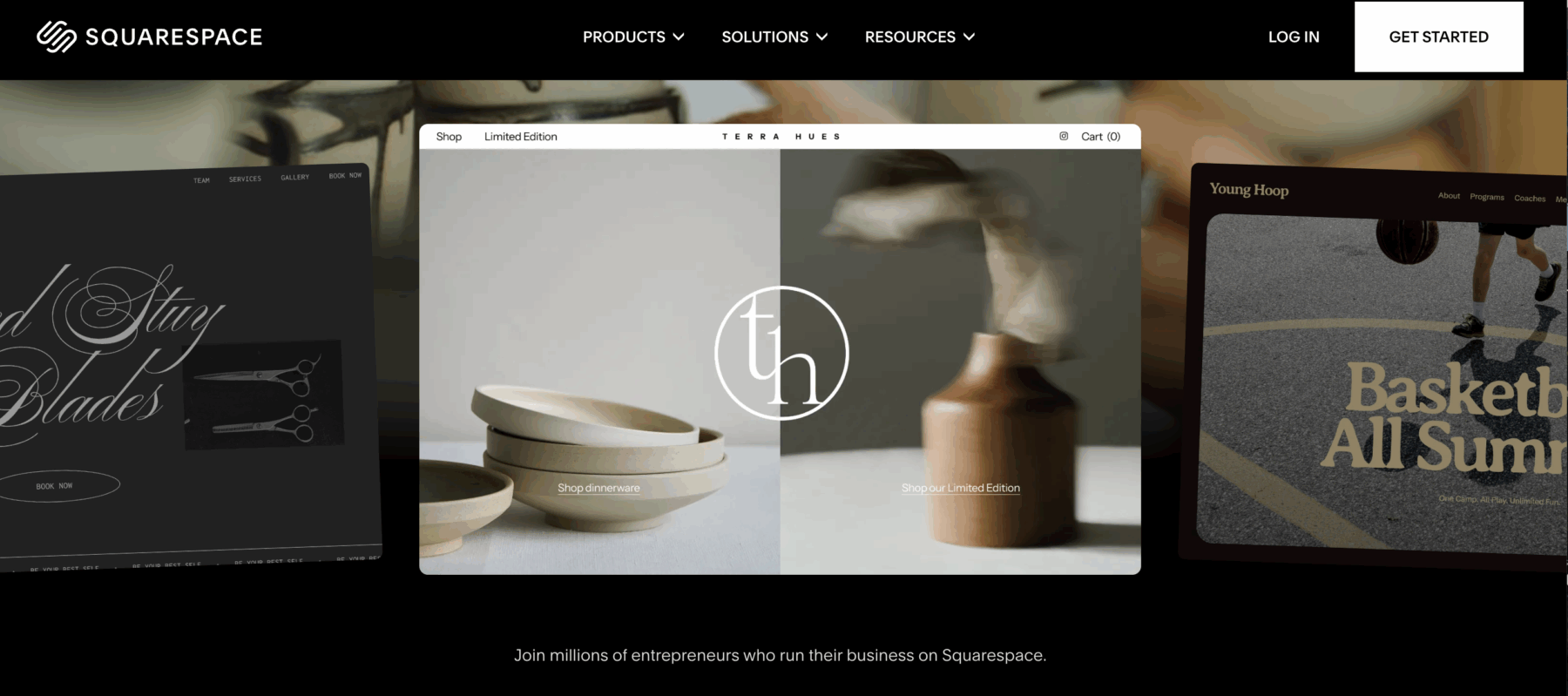
But if you’re a creative who wants your website to actually reflect your brand (not just sort of reflect it within the constraints of a template), Showit opens up possibilities that Squarespace just doesn’t offer.
The biggest change is design freedom: Squarespace keeps you inside a template’s structure, while Showit lets you place any element anywhere with no template constraints. Here’s what’s different, point by point:
Design freedom that actually means something. On Squarespace, you’re working within a template. Even when you customize colors, fonts, and images, you’re still bound by the template’s structure. On Showit, there is no template structure unless you choose one. You can place anything anywhere. Overlapping elements, custom spacing, completely unique layouts. It’s like the difference between rearranging furniture in a room versus designing the entire room from scratch.
Mobile sites that don’t just shrink your desktop version. Squarespace mobile sites are auto-generated based on your desktop design. You can adjust a few things, but you’re mostly working with what it gives you. Showit lets you design a completely separate mobile site. Different hero images, different text hierarchy, different calls to action. When 60% of your traffic is mobile, that control matters.
WordPress for your blog means real SEO power. Squarespace has blog functionality built in, and it works well. But when you move from Squarespace to Showit websites, your blog lives on WordPress. That means access to SEO plugins like RankMath, better control over meta descriptions and URLs, faster load times, and a platform that Google has always ranked well.
Your website can look exactly like your brand. Even the most customized Squarespace sites work within certain design parameters. Showit sites don’t have those constraints. They just look like the brand they represent.
What You Need to Know Before You Learn How to Move From Squarespace to Showit Websites
Let’s be clear: learning how to move from Squarespace to Showit websites isn’t a one-click migration. There’s no “import my Squarespace site” button.
| What moves with you | What you rebuild |
|---|---|
| Your domain (yourwebsite.com) | Page designs (home, about, services, contact) |
| Your blog posts (exported → WordPress) | Page layouts and structure |
| Your text and images (copied over) | Navigation and site design |
| Your email (stays intact) | — |
You’re going to rebuild your site. Either from scratch or using a Showit template that you customize.
That might sound like a lot of work. But here’s why it’s actually an opportunity: rebuilding gives you the chance to improve everything about your current site. That homepage that never quite converted the way you wanted? You can redesign it properly. That about page that feels a little cluttered? You can simplify it. The contact form that’s buried a few clicks deep? You can make it prominent.
Here’s what the process actually involves.
You’ll Rebuild Your Pages in Showit
When you’re figuring out how to move from Squarespace to Showit websites, the first thing to understand is that your Squarespace design doesn’t transfer over. You’re starting fresh in Showit‘s builder.
But you don’t have to start from a blank page. You can use a Showit template as your foundation. Our templates are built specifically for creatives: photographers, designers, coaches, wedding professionals. You choose one that matches your industry, then customize it with your brand colors, fonts, images, and copy.

It’s way faster than building from scratch, and you end up with a professional site that’s been designed with conversion in mind.
Your Blog Moves to WordPress
Squarespace blogs work well. WordPress blogs offer more flexibility for SEO, customization, and long-term growth.
When you move from Squarespace to Showit websites, your blog will run on WordPress. If you already have blog posts on Squarespace, you’ll export them and import them into WordPress. The process takes a few hours (reconnecting images, cleaning up formatting, setting up redirects), but it’s straightforward.
If you don’t have a blog yet, this step is simple. You’ll just set up WordPress and you’re done.
Your Domain Transfers With You
Your domain (yourwebsite.com) comes with you when you move from Squarespace to Showit websites. You can transfer your domain to GoDaddy or another registrar, or point it to your new Showit service by updating the DNS settings.
Your domain stays yours. Your email stays intact. It’s just a settings update.
You’ll Set Up New Hosting
Squarespace includes hosting in your subscription. Showit works the same way: your Showit plan includes hosting for your website design.
But because your blog runs on WordPress, you’ll need separate WordPress hosting. Most WordPress hosts are optimized for speed and security, and Showit integrates smoothly with all the major ones. Setup takes about 20 minutes.
The Step-by-Step Process for How to Move From Squarespace to Showit Websites
Let’s break this down into clear, manageable steps.
Step 1: Start Your Showit Free Trial
Head to Showit and start your free trial. With our link, you get a 14-day free trial — no credit card required.
Use this trial to actually build, not just explore. Recreate at least your homepage and about page so you can get a feel for how the platform works and whether you like building in it.
Step 2: Choose a Template or Build From Scratch
If you’re learning how to move from Squarespace to Showit websites and you’re not a designer, start with a template.
Browse Showit templates that match your industry. Photographer? Grab a photography template. Coach? Grab a coaching template. Designer? There’s one for that too.
Once you have your template, swap in your brand colors, fonts, images, and copy. Adjust layouts to match your style. The template gives you the structure; you make it yours.
Step 3: Rebuild Your Core Pages
Focus on your most important pages first: homepage, about, services or portfolio, and contact.
You’re not copying your Squarespace site exactly. You’re improving it. Think about what worked on your old site and what didn’t. This is your chance to fix the things that have been bothering you.
Step 4: Set Up WordPress for Your Blog
If you have existing blog posts on Squarespace, export them as an XML file (Squarespace has instructions in their help center). Then import them into WordPress using WordPress’s built-in importer.
You’ll need to reconnect images, clean up any formatting issues, and make sure your URLs match (or set up redirects). This is the most time-consuming part of learning how to move from Squarespace to Showit websites, but it’s manageable. Budget a few hours.
If you don’t have a blog yet, just set up WordPress and move on.
Step 5: Connect Your Domain
Once your Showit site is built and you’re happy with it, connect your domain.
If your domain is currently with Squarespace, you can either transfer it to a registrar like GoDaddy or leave it at Squarespace and update the DNS settings to point to Showit.
Showit’s help documentation walks through both options. It sounds technical, but it’s mostly just copying and pasting settings.
Step 6: Set Up 301 Redirects
If your page URLs are changing (for example, if your Squarespace about page was yoursite.com/about-us and your new Showit page is yoursite.com/about), set up 301 redirects.
Redirects tell Google “this page moved here,” so you don’t lose SEO rankings. You can set these up through WordPress or a redirect plugin.
Step 7: Launch Your Site
When everything looks good, publish your Showit site. Your Squarespace site goes offline. Your new Showit site goes live.
Monitor your site for a few days after launch. Make sure forms work, links aren’t broken, and pages load correctly on mobile.
How Long Does It Take to Move From Squarespace to Showit Websites?
Most creatives complete the move in one focused week. If you’re using a template and you have a straightforward site (5-10 pages, not a lot of blog content), you can realistically get this done in a weekend. Maybe two weekends if you’re being really thorough.
If you’re building from scratch, designing every page custom, or migrating a large blog with dozens of posts, plan for a few weeks.
Most people land somewhere in the middle. A solid week of focused work gets you most of the way there.
What It Costs to Move From Squarespace to Showit Websites
Expect roughly $32 to $69/month all-in for Showit plus WordPress hosting — a similar price range to Squarespace, but with complete design freedom and better SEO.
Squarespace pricing ranges from $16/month for a basic personal site to $49/month for advanced commerce plans. Most creatives are on a plan around $23 to $33/month.
Showit pricing starts at $22/month for a basic plan and $39/month for the standard plan most people use.
If you’re adding a WordPress blog (which most people do), you’ll also need WordPress hosting. That runs around $10 to $30/month depending on the host you choose.
Total cost for Showit plus WordPress hosting: roughly $32 to $69/month.
You’re in a similar price range to Squarespace. The difference is what you’re getting: complete design freedom, better SEO capabilities, and a site that can truly look like your brand.
Should You Hire Someone to Help Move From Squarespace to Showit Websites?
You don’t have to hire anyone — if you’re comfortable following tutorials you can absolutely DIY this — but if rebuilding, migrating your blog, and setting up redirects feels overwhelming, a done-for-you migration removes the risk. If you’re comfortable figuring things out as you go, you can do this yourself.
Showit has tons of tutorials, a helpful support team, and an active community of users who are happy to answer questions.
That said, if the idea of rebuilding your site, migrating your blog, transferring your domain, and setting up redirects feels overwhelming, handing it off is totally reasonable.
We’ve built on Showit for 10 years, designed 300+ custom sites, and sold 8,000+ templates — and Showit named us Designer of the Year. If you’d rather hand it off, we offer done-for-you migrations that rebuild your pages, move your blog, transfer your domain, and set up redirects, starting at $4,500. You can see client results at daveyandkristareviews.com.
If you want to DIY it but need some guidance, grab one of our Showit templates. They come with setup videos that walk you through customizing everything step by step.
Is Learning How to Move From Squarespace to Showit Websites Worth It?
If you’re a creative who cares deeply about design and you’re feeling limited by Squarespace’s template structure, yes.
If you want true mobile customization so your site looks intentional on phones, not just auto-adjusted, yes.
If you want better SEO capabilities and more control over how your content ranks, yes.
If your Squarespace site is working well for you and you’re not hitting any design or functionality limits, then maybe not yet. But when you do start feeling that ceiling, this is the move most creatives make.
The process takes some time. But the result is a website that finally looks and works exactly the way you’ve been picturing.
Ready to see what’s possible? Start your free Showit trial — a 14-day free trial, no credit card required. And if you want a head start, browse our Showit website templates built for photographers, designers, coaches, and creatives who want more design control.
Frequently Asked Questions About How to Move From Squarespace to Showit Websites
Can I transfer my Squarespace site directly to Showit?
There’s no direct design transfer, so you’ll rebuild your website pages in Showit, either from scratch or using a template. Your blog posts can be exported from Squarespace and imported into WordPress easily. Your content (text and images) can be copied over to your new pages, but the design itself needs to be recreated.
Will I lose my SEO when I move from Squarespace to Showit websites?
If your page URLs are changing (for example, if your Squarespace about page was yoursite.com/about-us and your new Showit page is yoursite.com/about), set up 301 redirects.
But if you’re keeping the same site structure and your URLs match, you don’t need redirects. Your SEO will be protected automatically.
Redirects are only necessary for pages that no longer exist or URLs that have changed. You can set these up through WordPress or a redirect plugin.
How do I move my blog from Squarespace to Showit?
Export your blog posts from Squarespace as an XML file, then import them into WordPress (which powers Showit blogs). You’ll need to reconnect images and clean up formatting, but WordPress has built-in tools that handle most of it.
Do I need to know code to use Showit?
No. Showit is drag-and-drop, similar to Squarespace. The difference is Showit gives you way more design freedom. You can add custom code if you want, but you don’t need it for a fully functional, beautiful website.
Can I keep my domain when moving from Squarespace to Showit?
Yes. You can either transfer your domain to GoDaddy or another registrar, or keep it at Squarespace and just update the DNS settings to point to Showit. Your domain stays yours.
How much does Showit cost compared to Squarespace?
Showit plans start at $22/month (basic) and $39/month (standard). With WordPress hosting for your blog, total cost is around $32 to $69/month. That’s similar to Squarespace’s mid-tier plans, but with significantly more design control.
Is it hard to learn how to move from Squarespace to Showit websites?
It’s not hard, but it does take time. If you use a template and have a simple site, you can do it in a weekend. If you’re building custom or migrating a large blog, plan for a week or two. Showit has great tutorials and support to help you through it.
How long does a Squarespace to Showit migration take?
Most creatives finish in about a week. A simple template-based site of 5–10 pages can be done in a weekend, while a custom build or a large blog with dozens of posts takes one to two weeks.
Can you migrate my Squarespace site to Showit for me?
Yes. We offer done-for-you migrations that rebuild your pages in Showit, move your blog to WordPress, transfer your domain, and set up 301 redirects so you don’t lose SEO. Our migration and custom design work starts at $4,500.
Will my Squarespace blog posts keep their URLs when I move to Showit?
They can. When you export from Squarespace and import into WordPress, you can match your existing URL structure — and for any URLs that do change, a 301 redirect preserves your search rankings.

Krista is the co-founder of Davey & Krista, a creative studio known for high-converting Showit website templates crafted for photographers, creatives, and entrepreneurs. With over 15 years of branding and marketing experience, she helps business owners launch stunning websites without the tech overwhelm. Krista also teaches designers how to turn their creative skills into a thriving business—through templates, courses, and behind-the-scenes strategy. When she’s not designing, you’ll find her chasing sunshine, color palettes, and gluten-free pizza.
Explore website templates and free resources at daveyandkrista.com.


VIEW THE COMMENTS
Add A Comment