


The Showit Publish Engine has been rebuilt, and if you’ve opened your Showit account lately you’ve probably seen the result: a small toggle in the preview window and in the publish dialog labeled Beta Publish Engine.
If you’ve been wondering what that toggle means for your site, whether you need to do anything about it today, and what happens if you turn it on, this is the walkthrough.
Here’s the short version: the new Showit Publish Engine produces cleaner HTML, better accessibility structure, and faster page loading, and as of August 2026 it’s completely optional. You don’t have to switch today. But every Showit site will move over eventually, so the best time to look at yours is a quiet week when nothing is launching.
For most sites this is a handful of checks and a republish. Let’s walk through it.
Quick answers
- What is it? The Publish Engine is the system that turns your Showit design into the actual website your visitors, search engines, and screen readers experience. Showit rebuilt it.
- Do I have to switch? Not right now. There’s no announced deadline. But it will become the standard, so plan for it.
- Will it break my site? If your site is built with native Showit features, most likely no. Preview first to confirm.
- What’s most likely to need attention? Custom CSS or JavaScript, and occasionally an element with an animation effect on it.
- Is it reversible? Yes. If you publish with it on and something looks off, toggle it back off and republish.
What is Showit’s new Publish Engine?
The Publish Engine is the translation layer between the design you build on your canvases and the website the world actually sees. You design visually, you hit publish, and the engine writes the code behind it. Most of us never think about it, which is exactly the point.
Showit rebuilt that engine from the ground up. What you get with V2:
- Cleaner HTML. HTML is the code that makes up the front end of your website. You don’t see it because you’re working in Showit, but it’s what search engines and browsers read. It comes out tidier now.
- Better accessibility structure. Screen readers and other accessibility tools can move through your content in a way that matches how it’s actually laid out.
- Faster page loading, with less content shifting as the page comes in.
- Faster publishing on larger sites.
The single change underneath all of that: the new engine orders your HTML top to bottom instead of bottom to top. The code order now matches the layer order you see on your canvas, the way pages were structured back when we all hand-coded websites. That’s why screen readers and search engines can read your site better, and it’s also the reason a few things are worth double-checking before you flip the switch.
At its core, Showit is still Showit. You still design on canvases inside your pages, and you still hit publish. Nothing about how you work changes.
One thing you may notice in the builder: click the three dots on a canvas and you’ll see an option to optimize the layer order. If your layers were stacked in an order that doesn’t match how the content should read, this reshuffles them so they render correctly top to bottom, left to right. On a well-organized canvas it may not change anything at all.
This rebuild also puts Showit in a position to ship new features faster. WebP images for faster loading, new form field types beyond a plain text box, updated animations and triggers. That’s the pipeline this foundation makes possible.
Do I have to switch to the new Showit Publish Engine right now?
No. As of August 2026, the new Publish Engine is optional for every Showit user. There’s no forced switch and no announced deadline. Your existing sites keep running on the current engine until you decide to change them.
Here’s how the rollout works right now:
- The toggle is labeled Beta Publish Engine in the app and is available to everyone
- Designs that were previously locked into it can now turn it off
- New designs are no longer forced into it
- New designs copy the engine version of whatever template or design they came from
That said, I do recommend starting soon. There will come a point when every Showit site needs to make these updates, and it’s a much calmer job when it’s not urgent. For most sites it’s a few checks and a republish.
If you’re a template designer, start sooner. A large template library takes real time to work through, and your templates are what new Showit users land on first.
How to preview your site with the new Publish Engine
This is the whole method, and Showit made it easy: you can preview your site with the new engine turned on without changing anything on your live site.
Open any page in Showit and click Preview. In the top right of the preview window you’ll see a toggle for the Preview Beta Publish Engine. Turn it on, and you’re looking at exactly how that page will render with V2.
Nothing you do in preview touches your live URL. You can toggle back and forth as many times as you want.
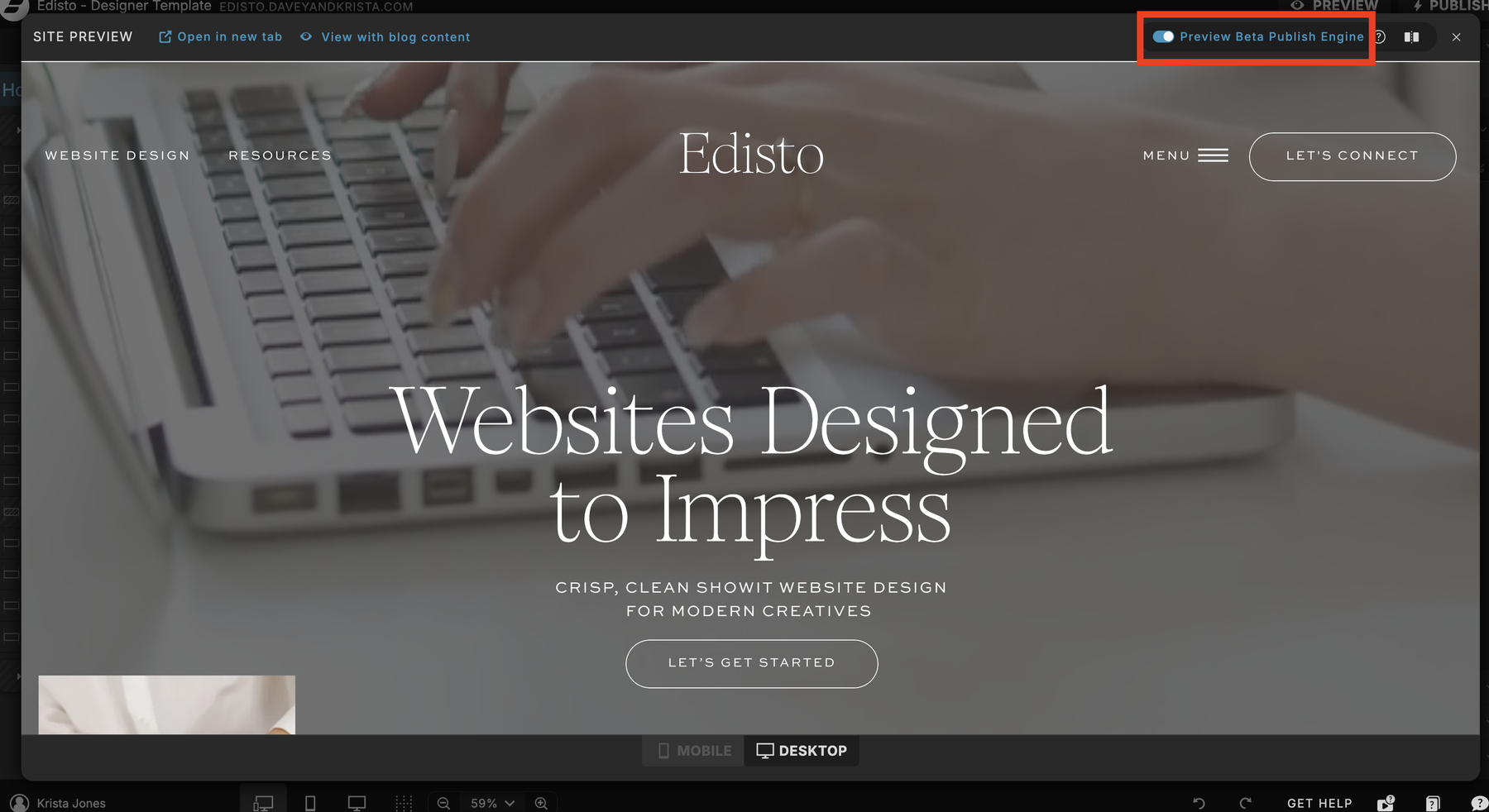
Go page by page. Every page of your site, or every page of your template:
- Home
- About
- Services or pricing
- Contact
- Any page with a form
- Any page with a slideshow or gallery
- Your 404
On each page, check for:
- All your images loading
- All your text appearing
- Spacing and alignment
- Hover states on buttons and links
- Anything that opens a different canvas view when clicked
- Navigation, especially on mobile
Then check mobile. Switch from desktop to the mobile view in your Showit account, turn the toggle on again, and run through the same pages. Mobile is a huge share of traffic on most of our sites, and mobile layouts are where issues like to hide.
I’d keep a running list as you go rather than stopping to fix each thing. Look first, fix second.
If something doesn’t look right
Here’s the diagnostic that answers most questions in about ten seconds:
Toggle the Beta Publish Engine off and look at the same page again. If the problem disappears, it’s connected to the engine. If it’s still there with the toggle off, it was already there and it’s a design issue.
One pattern worth knowing, because I ran into it on my own template: if an image or a block of text isn’t appearing in the beta preview, check whether it has an animation effect on it. On a template I was reviewing, every element that failed to load had a fade or slide-in applied. I set those effects to None, previewed again, and everything came in correctly. If you see missing elements, that’s the first thing I’d check.
How to check your blog posts with the new Publish Engine
Your blog needs its own pass, and this is the step most people skip.
Blog templates pull in live content that doesn’t exist on your design canvas. A normal preview shows you an empty shell. To see the real thing, preview with the Beta Publish Engine on, then use the view with blog content option. That loads your actual posts into the preview so you can see how the layout handles real content.
Check all of it:
- Your main blog page
- A single blog post layout
- Category, archive, or search pages
- Any post lookup canvas, including one on your homepage, if you have a recent-posts section there
Watch for large gaps, images not loading, and text spacing. Some of what you find will be a setting you can adjust in Showit. Some of it may be something Showit’s team should know about.
Showit is actively working through blog rendering and shipping fixes regularly, so if you looked at this a few weeks ago and set it aside, it’s worth another pass. And if you hit something on the blog side you can’t resolve, it’s completely fine to leave that site on the current engine and check back. Nothing is stuck.
Will the new Publish Engine break my custom code?
If your site has custom CSS or JavaScript, this is the part most likely to need updating. If it doesn’t, you can skip this section entirely, and that’s most Showit sites. One of the best things about Showit is that you really don’t need custom code to build a beautiful, functional website.
Why code needs updating: the new engine changes the class names Showit generates and the way elements are nested inside each other. If your CSS was targeting Showit’s own class names, or positioning something based on where it sat in the old structure, those selectors need to be pointed at the new ones.
Three specific things that changed:
1. Old Showit-generated class names are different. Anything targeting Showit’s built-in classes needs the new equivalent.
2. .d and .m no longer separate desktop from mobile. The old engine put d or m on the page root and swapped them at the breakpoint. The new engine keeps both on the page at all times, so a .d rule and an .m rule now hit the same element and whichever comes last wins. These need to become real media queries. Showit’s default breakpoint is 768 pixels, so your mobile rule becomes @media (max-width: 768px).
3. Canvas ID selectors like #about no longer exist. Canvases used to carry an ID matching their slug. They don’t now. They’re targeted by a data attribute instead. In-page anchor links that used to scroll to a canvas will need a small script.
Worth knowing: even your own custom classes may need a look. A custom class used to land on the box that positions the element. It now lands on the inner content box. Painting rules like color, background, border, and font still work fine. Positioning rules like top, left, width, height, and transform need to reach the parent element.
Also flag any manually reversed text layers for review before you switch.
The free tool that does most of this for you
If you’re in the Showit design community, there’s a custom code updater available as a free Claude skill. You download it, add it to a chat, and paste in your existing CSS or JavaScript. It returns the converted code, flags anything that needs a design change instead of a code change, and tells you what to double-check visually.
I ran it on a template with a WooCommerce shop, one of the few of mine with meaningful custom code, and it handled the conversion in about a minute. On another page it came back and told me nothing needed to change, which is also useful to know.
It’s a real time-saver, but preview the result. It gets you most of the way there; your eyes do the last bit.
How to turn on the Beta Publish Engine and publish
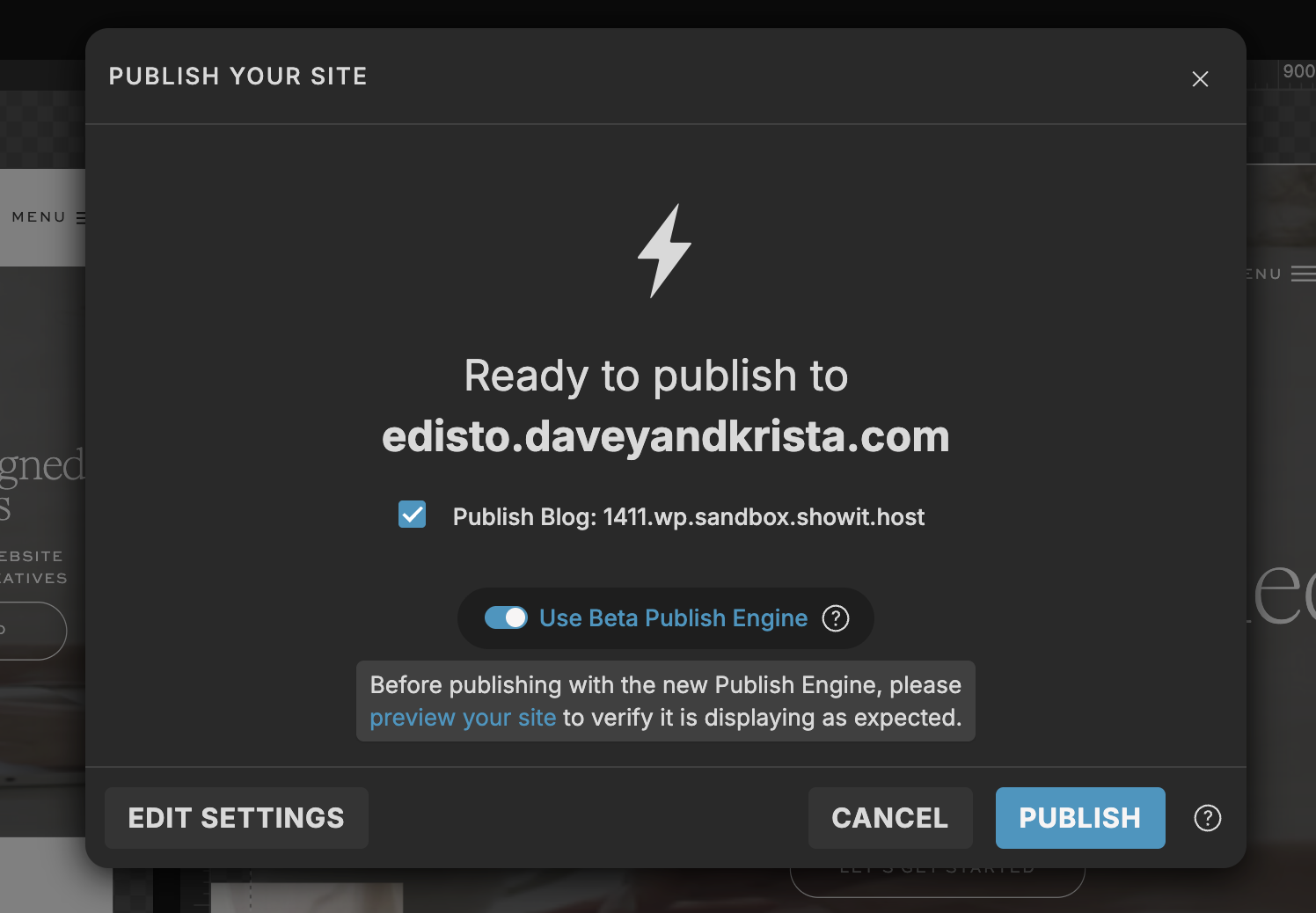
Once your preview looks right, open the publish dialog and switch on Use Beta Publish Engine, then publish.
The most reassuring thing about this toggle: it’s reversible. If you publish and something doesn’t look right on the live site, turn it back off, republish, and you’re on the previous version. Your visitors don’t see the issue while you sort it out or wait on a support response.
After you publish, do a hard refresh and check:
- Your homepage and your about page on desktop
- A couple of interior pages
- Your main blog page and two or three individual posts
- Submit a contact form and confirm it goes through
- All of the above again on mobile
Two pieces of timing advice:
Publish on a quiet day. Not mid-launch, not during a promotion, not the night before something big.
And if you’re a designer making this change on a client site, tell them first. You don’t want your client to be the one who finds something unexpected and doesn’t know how to fix it. A short heads-up email beforehand saves an anxious phone call after.
How to update your Showit templates and Share Keys
If you sell or hand off Showit templates, there’s one more step.
First, confirm the template works correctly with the Beta Publish Engine turned on, same process as above, pages and blog and mobile. Then update the Share Key with the engine enabled:
- Go to Site Settings
- Choose Export Design
- Toggle on Use Beta Publish Engine
- Hit Share
That updates the Share Key. Anyone who loads that Share Key from then on gets the newer version of the template, on the new engine, with new features as they arrive.
You don’t need to do your whole catalog in a weekend. Start with your top sellers, the ones going into the most new hands, and work down as time allows. A simple spreadsheet with template name, date reviewed, and Share Key updated keeps you honest.
Two more things worth doing if you sell templates:
Record a short tutorial for your buyers. Walk them through what the new Publish Engine is, what to preview, and what to look for. Send it to past customers as well as new ones. Everyone on Showit will need to make these updates at some point, and a five-minute video from you saves them from discovering it under pressure.
Document anything specific to your own templates. If you added custom code or built something in a particular way, your buyers will need to know. Writing that down now, while it’s fresh, is much easier than answering the same support email forty times later.
Some designers are also offering this as a paid service, going into past client sites, testing, and switching them over. If you have a client list and a slow month, that’s a genuinely useful thing to offer.
What to do if something looks wrong
Toggle the Beta Publish Engine off and look at the same page again. If the issue disappears, it’s engine-related.
Then send it to Showit support. Their support team is one of the best things about the platform, and that’s especially true right now. They’re active, they’re responsive, and they want to know what people are running into so they can fix it for everyone.
Include three things in your message:
- The exact URL of the site with the issue
- Your browser and version number
- Your operating system
That’s the difference between a fast fix and three rounds of back and forth.
Submit even if you think someone else already reported it. Duplicate reports help confirm what’s happening and how widely. You’re not bothering anyone.
And in the meantime, your site can stay right where it is. Turn the toggle off, keep working, come back to it.
The short checklist
- Preview each page with the Beta Publish Engine on, desktop and mobile
- Preview your blog with real blog content, including any post lookup canvases
- Check any elements with animation effects if something isn’t loading
- Run custom CSS or JavaScript through the code updater, if you have any
- Turn on Use Beta Publish Engine and publish
- Hard refresh and spot-check your live site on both desktop and mobile
- Template designers: export your Share Key with the engine enabled
- Report anything unresolved to Showit Support with URL, browser, and OS
Frequently asked questions
What is Showit’s Publish Engine V2?
It’s Showit’s rebuilt system for turning your design into your live website. It produces cleaner HTML, improved accessibility and screen reader structure, faster page loading with less content shifting, and faster publishing on large sites. In the app it’s labeled the Beta Publish Engine.
Do I have to switch to the new Showit Publish Engine?
Not right now. As of August 2026 it’s optional for every Showit user and no deadline has been announced. Every Showit site will move to it eventually, so it’s worth preparing when you have free time rather than waiting.
Will the new Publish Engine break my Showit site?
Sites built entirely with native Showit features usually need no changes at all. Preview with the toggle on before switching to confirm. Sites with custom CSS or JavaScript are the most likely to need updates.
Can I undo it if something goes wrong?
Yes. Turn off the Use Beta Publish Engine toggle in the publish dialog and republish, and your site returns to the previous engine.
Why aren’t some of my images or text showing up in the beta preview?
Check whether those elements have an animation effect applied. On at least one of my templates, every element that failed to load had a fade or slide-in on it, and setting the effect to None resolved it. If that’s not it, toggle the engine off and preview again to confirm whether the issue is engine-related, then report it to Showit Support.
How do I check my blog with the new Publish Engine?
Preview with the Beta Publish Engine on, then use the view with blog content option to load your real posts. Check your main blog page, a single post layout, category and archive pages, and any post lookup canvas, including one on your homepage.
Do I need to update my Showit templates?
If you sell or hand off templates, yes. Confirm the template works with the engine on, then export the Share Key with Use Beta Publish Engine toggled on. Every new design created from that Share Key will use the new engine going forward.
Does the new Publish Engine affect SEO?
It should help. Cleaner HTML and a top-to-bottom content order make it easier for search engines and AI tools to understand the structure of your pages. Your content, titles, and descriptions all carry over unchanged.
I’m genuinely excited about this one. A stronger publishing foundation means Showit can ship the features we’ve all been asking for, faster, and the accessibility and structure improvements are things our sites should have had for a while.
For most of you, getting ready is a preview, a couple of small fixes, and a republish. Take an hour on a slow afternoon and you’re done.
If you have questions about the new Publish Engine, leave a comment on the video or reach out to Showit’s team directly. They’ve been great through this.

Krista is the co-founder of Davey & Krista, a creative studio known for high-converting Showit website templates crafted for photographers, creatives, and entrepreneurs. With over 15 years of branding and marketing experience, she helps business owners launch stunning websites without the tech overwhelm. Krista also teaches designers how to turn their creative skills into a thriving business—through templates, courses, and behind-the-scenes strategy. When she’s not designing, you’ll find her chasing sunshine, color palettes, and gluten-free pizza.
Explore website templates and free resources at daveyandkrista.com.


VIEW THE COMMENTS
Add A Comment